
Skip to content
Luma Motion
IntroductionInstallationInterface overviewYour first scene
LayersMedia
TimelineKeyframes & easingMotion presetsExpressionsPhysics
EffectsModifiersMasks & revealsConstraintsTracking
TextShapesBasic componentsBackgroundsCaptionsParticles3DCameraScreensMockupsBackground Builder
Save to FusionLive syncFrom Fusion to Luma Motion
TemplatesThemes
Seats & invitesShared library
Plans & pricingYour accountLicence keysDevices & offline
Keyboard shortcutsTroubleshooting
Render readinessAssets & portabilityFrame rate & colour
Luma Motion

The motion graphics engine built for DaVinci Resolve.

Product

DiscoverFeaturesModulesPricingDownload

Resources

LearnDocumentationBlogReleasesSupport

Company

ContactCreate an accountTerms & EULAWebsite TermsPrivacyCookies & storageAccessibilityAffiliate program
© 2026 Luma Motion

Luma Motion is independent software, not affiliated with Blackmagic Design. DaVinci Resolve and Fusion are trademarks Of Blackmagic Design.

Luma Motion
DiscoverShowcaseWork made with Luma Motion.TemplatesA starting point for your next scene.ModulesExtend your creative workspace.Explore all of discover
ShowcaseReal projects, frame by frame.
Features
LearnBlogIdeas behind the movement.DocsFrom first scene to native Fusion.FAQDirect answers. Clear guidance.Explore all of learn
BlogNotes on motion, craft and releases.
Pricing
Get Luma Motion
Explore discoverShowcaseTemplatesModules
Features
Explore learnBlogDocsFAQ
PricingSign in

Search Luma Motion

HomeLuma MotionFeaturesLuma MotionDiscoverLuma MotionShowcaseLuma MotionBlogLuma MotionLearnLuma MotionTemplatesLuma MotionModulesLuma MotionPricingLuma MotionDownloadLuma Motion

Docs/Getting started

Your first scene

From a blank canvas to native Fusion nodes.

Prepare

Install DaVinci Resolve separately, then install the Luma Motion package for your operating system.
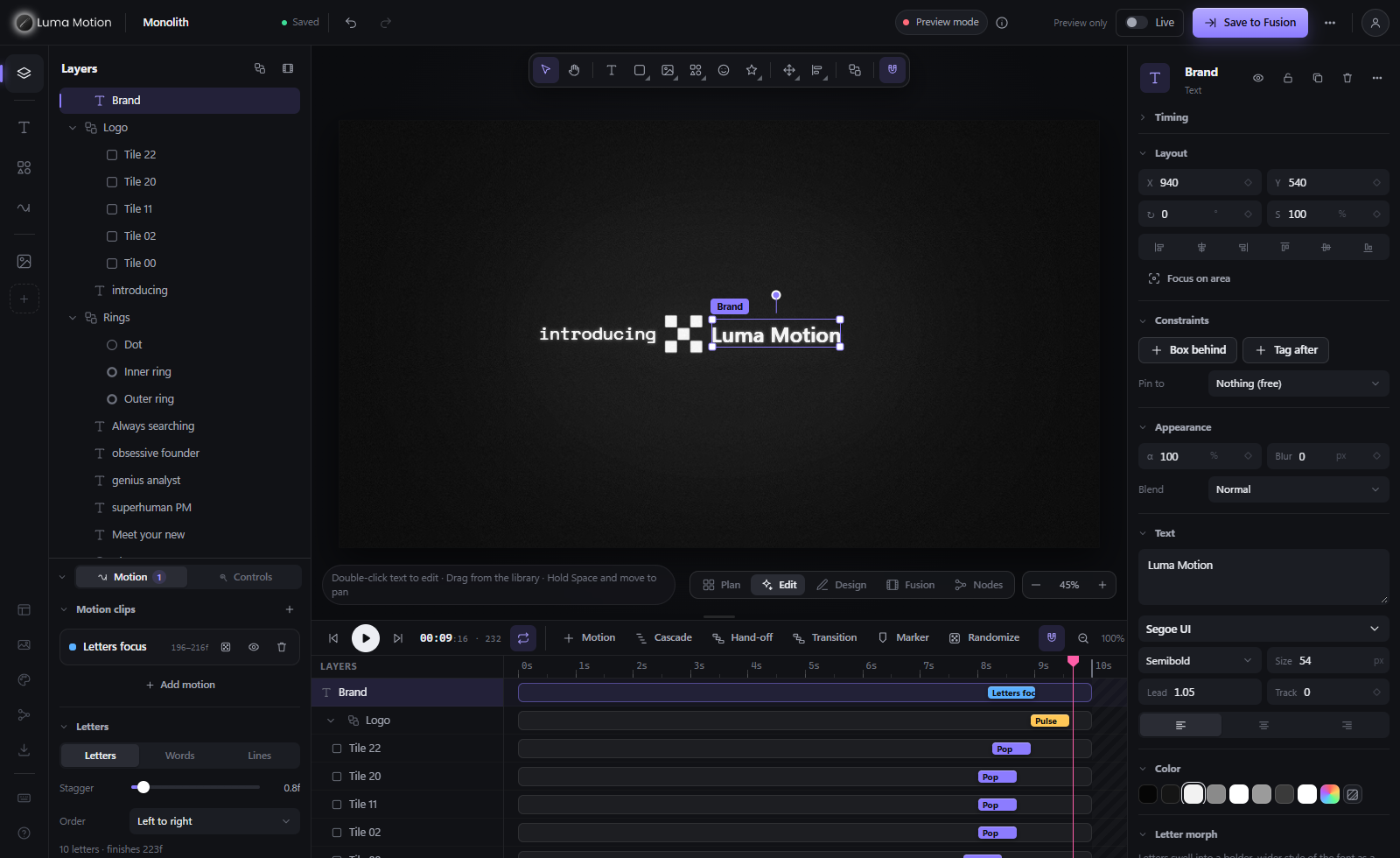
Luma Motion beta editor with the canvas, layer list and timeline visible
The editor shown with a sample scene. Use your own comp dimensions and footage when starting a production project.

Open the workspace

  1. In Resolve, open a composition on the Fusion page.
  2. Enable external scripting in Preferences → System → General → External scripting: Local.
  3. Choose Workspace → Scripts → Comp → Luma Motion, or use the Launch button on the Luma Motion fuse.
  4. Create a new scene or choose a template. Add text, shapes or media to the canvas.

On Windows, a cmd window may appear for a moment as Luma Motion launches. This is completely normal and expected behaviour.

Give it movement

Select a layer and open Motion. Start with a preset, then adjust timing on the timeline. Use keyframes and easing to shape the pace.

Save to Fusion

Choose Save to Fusion. Luma Motion compiles the scene into an undoable group of native Fusion nodes. Keep refining it in Resolve.

Review the node graph and rendered output in Resolve. Certain workflows, including particle output, may use baked media sequences; the generated representation depends on the feature.

Continue learning Fusion

  • Blackmagic Design supportDownload the Resolve and Fusion manual for the version installed on your workstation.
  • Official trainingExplore Blackmagic Design's practical Resolve and Fusion training materials.
PreviousInterface overviewNextLayers

On this page

PrepareOpen the workspaceGive it movementSave to FusionContinue learning Fusion