Your first scene.
From installation to your first editable Fusion composition.
A little preparation
Luma Motion runs alongside DaVinci Resolve and launches from its active Fusion composition. Install Resolve separately, then install the Luma Motion package for your operating system using its included instructions. The current packages are beta builds for Windows, macOS and Linux; confirm compatibility in your own Resolve environment before a delivery-critical job.
- Open a Resolve project and select the clip or composition you intend to work on.
- In Resolve Preferences, enable External scripting: Local.
- Keep an original project version before testing an unfamiliar workflow.
A first working session
On the Fusion page, choose Workspace → Scripts → Comp → Luma Motion, or use the Fuse's Launch button.
Create a scene or start from a template. Confirm the canvas dimensions and timing.
Add a title, supporting shape and any required footage. Keep the reading order clear.
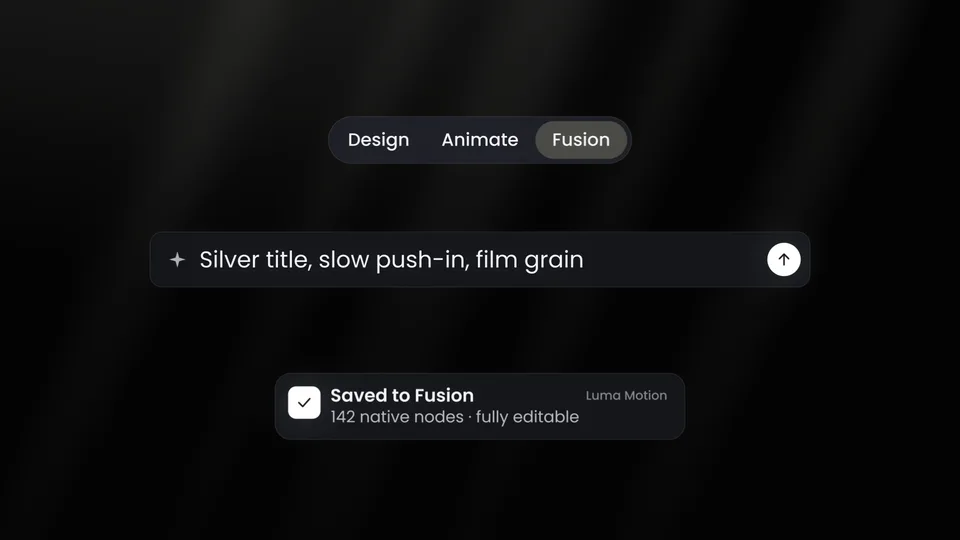
Choose Save to Fusion, then scrub the generated result in Resolve.
Review before you add detail
Animate the primary message first. Select a layer, try a Motion preset, then adjust its timing on the timeline. Use keyframes and easing to control the pace; bring secondary elements in only after the main gesture reads clearly.